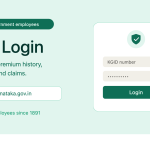
If you study or teach in Karnataka, you have probably heard about UUCMS. It is the online portal that now runs almost every part of higher education in the state. Admissions, course registration, attendance, exam forms, and results all pass through it.
But many students still get stuck at the first step: the login page.
This guide explains the UUCMS login process in simple words. You will learn what UUCMS is, how to log in as a student, faculty member, or college admin, what to do when your password fails, and how to fix the most common errors.
What Is UUCMS?
UUCMS stands for the Unified University and College Management System. It is a project of the Department of Higher Education, Government of Karnataka.
The official website is uucms.karnataka.gov.in.
The idea behind UUCMS is simple. Before this portal existed, every university in Karnataka used its own software. A student’s data sat in one system, exam records sat in another, and nothing connected properly. Moving from one college to another meant paperwork, delays, and lost files.
UUCMS put all of it under one roof. The portal brings public universities and affiliated colleges onto a single platform. That means one login, one profile, and one record that follows the student from admission to degree.
According to the official portal, UUCMS covers more than 3,800 colleges, over 18,000 teaching faculty, and more than 15 lakh students across Karnataka.
The system was built with the Centre for Smart Governance (CSG), part of the Department of E-Governance in Karnataka. A State Project Monitoring Unit under the Department of Higher Education keeps track of the project.
Who Uses the UUCMS Portal?
UUCMS is not only for students. The portal uses role-based logins. Everyone signs in from the same page but lands on a different dashboard.
Here are the main user types:
- Students and candidates – apply for admission, register for courses, fill exam forms, and view results.
- Faculty members – mark attendance, upload internal marks, and manage lesson plans.
- College administrators – approve admissions, manage sections, and handle college-level data.
- University staff – process results, approve colleges, and manage exam records.
- Department officials – view statewide data on higher education.
Your role decides what you see after login. A student will never see the marks entry screen, and a faculty member will never see the admission application form.
What You Need Before You Log In
Keep these ready before you open the login page. It saves a lot of time.
For students:
- Your Candidate ID or username
- Your password
- The mobile number you registered with (for OTP)
- A stable internet connection
For faculty and college staff:
- The username given by your university or college
- Your password
- Your registered mobile number
One important point for new students: your Candidate ID usually arrives by SMS after your college uploads your details. If you never received it, your college has not completed the upload yet.
How to Do a UUCMS Student Login: Step by Step
Follow these steps carefully.
Step 1. Open your browser and go to uucms.karnataka.gov.in. Use Chrome, Edge, or Firefox. Older browsers often break the page.
Step 2. Click the Login button on the homepage.
Step 3. Select the Student or Candidate role from the login options.
Step 4. Enter your Candidate ID or username in the first field.
Step 5. Enter your password. Remember, the password is case sensitive. “Student@123” and “student@123” are two different passwords.
Step 6. Type the captcha shown on the screen. Look carefully at each character. Many failed logins are simply captcha mistakes.
Step 7. Click Login.
You will land on your student dashboard. From there you can reach your profile, admission status, course registration, exam forms, and results.
How to Register as a New Student on UUCMS
If you are joining a UG or PG programme for the first time, you need to register before you can log in.
Step 1. Go to uucms.karnataka.gov.in and click Login.
Step 2. Look for the “New Users? Register Here” link on the login page.
Step 3. Choose the student or candidate registration option.
Step 4. Fill in the registration form. You will be asked for:
- Your full name, exactly as printed on your marks card
- Date of birth
- Gender
- Mobile number and email address
- Category details
- Your previous qualification, usually your 12th or PUC details with board name and roll number
Step 5. Verify your mobile number using the OTP sent by the portal.
Step 6. Create your username and password.
Step 7. Note down the registration number the portal gives you. Save it somewhere safe.
Two Tips That Prevent Big Problems Later
Use your own mobile number. Do not use a cyber café number or a friend’s number. Every OTP, admission update, and result alert goes to that number. If you lose access to it, recovery becomes painful.
Match your name to your documents. If your marks card says “Rakesh Kumar M” and you type “Rakesh M Kumar,” your admission approval can get delayed. Small spelling gaps cause real trouble at the verification stage.
Keep scanned copies of your marks cards, caste or income certificate, photo, and signature ready. Admission applications ask for these uploads. Storing them in DigiLocker is a smart move, since those copies are legally valid and easy to fetch.
Faculty and College Login on UUCMS
Faculty members do not self-register. Your college or university creates your account and gives you the credentials.
To log in:
- Open uucms.karnataka.gov.in.
- Click Login.
- Select Faculty Login or College Login, depending on your role.
- Enter the username and password assigned to you.
- Complete the captcha and sign in.
Once inside, faculty can capture attendance, enter internal assessment marks, upload lesson plans, and view class lists. UUCMS also supports faculty management features such as performance assessment and promotion records.
If a faculty account does not work, the college admin or the university nodal officer is the right person to contact. The helpdesk cannot reset accounts they did not create.
What You Can Do After Logging In
Here is a quick look at the main functions inside the student dashboard.
Manage Profile. Update your personal details, upload your photo, and check that your name, date of birth, and category are correct.
Admission Application. Apply to a programme, upload documents, and track approval status from your college.
Course Registration. Choose your subjects or electives for the semester. This step is compulsory in most universities. Miss it, and your exam form may not open.
Exam Application. Fill your semester exam form and pay the fee within the deadline.
Internal Marks. View the internal assessment marks uploaded by your faculty. Check them early. If something looks wrong, you have time to raise it.
Results. Download your semester results and marks cards. Many Karnataka universities also push marks cards to DigiLocker through UUCMS, so you get a digital copy that employers accept.
Fee Payment. Pay admission and exam fees online where the college has enabled it.
Forgot Your UUCMS Password or Candidate ID?
This is the most common problem students face. Here is how to handle it.
If you forgot your password
- Go to the login page.
- Click Forgot Password.
- Enter your Candidate ID or registered mobile number.
- Receive the OTP on your registered mobile.
- Enter the OTP and set a new password.
Choose a password you can remember but others cannot guess. Avoid using your date of birth.
If you forgot your Candidate ID
Check your old SMS inbox first. The ID was sent by SMS when your account was created. Search for messages from UUCMS or your college.
If you cannot find it, contact your college admin office. They can look up your ID in the system. The state helpdesk will usually redirect you to your college anyway, so start there.
If your mobile number changed
You cannot change it yourself. Visit your college admin. They have the rights to update your registered mobile number in UUCMS. Once updated, OTP recovery works again.
Common UUCMS Login Problems and How to Fix Them
“Invalid credentials” error. Check the Candidate ID character by character. Confirm caps lock is off. Retype the password instead of pasting it. If it still fails, use Forgot Password.
Credentials never received. Your college may not have uploaded your details yet. Call the admin office and confirm your registered mobile number is correct in their record.
Captcha keeps failing. Refresh the captcha and try again. Some characters look alike, such as 0 and O, or l and 1.
The portal is very slow or does not open. This happens during peak periods, especially when results are declared or admissions close. Traffic spikes overload the servers. Try early morning or late night. Do not keep refreshing, since that adds to the load.
Page loads but buttons do not work. Clear your browser cache and cookies. Then reopen the site. If the problem stays, try a different browser or a desktop instead of a phone.
Documents will not upload. Check the file size and format. Most upload fields accept JPG or PDF within a set size limit. Compress large scans before uploading.
Which Universities Use UUCMS?
UUCMS covers state universities and their affiliated colleges across Karnataka. This includes well-known institutions such as:
- Bangalore University
- University of Mysore
- Kuvempu University
- Mangalore University
- Gulbarga University
- Davangere University
- Karnataka State Akkamahadevi Women’s University
- Rani Channamma University
Many more state universities and autonomous institutions are part of the system. If you study in a Karnataka government or aided college, your academic record almost certainly runs through UUCMS.
Simple Tips for a Smooth UUCMS Experience
Do not wait for the deadline. Course registration and exam forms attract heavy traffic on the last two days. Finish early.
Take screenshots. After every submission or payment, save a screenshot. It is your proof if something goes missing.
Check your profile every semester. A wrong spelling or category detail can hold up your degree certificate later.
Keep your mobile active. Almost every recovery route depends on OTP.
Use only the official website. Type uucms.karnataka.gov.in yourself. Do not trust random links promising fast login or instant results. Fake portals collect student data.
Talk to your college first. For nearly every login problem, the college admin has more power to fix things than any helpdesk email.
Frequently Asked Questions
What is the official UUCMS login website? The official portal is uucms.karnataka.gov.in, run by the Department of Higher Education, Government of Karnataka.
Can I register on UUCMS myself? Yes. New candidates can register through the “New Users? Register Here” link on the login page. Faculty and college staff accounts are created by the institution.
How do I get my Candidate ID? It is sent by SMS to your registered mobile number once your college uploads your details. If you did not get it, contact your college admin.
Can I check my results on UUCMS? Yes. Log in and open the results section of your dashboard. Many universities also deliver marks cards through DigiLocker.
Is there a UUCMS mobile app? The portal works through a browser. Use the website on your phone if you do not have a laptop, but a desktop is more reliable for uploads and payments.
Why is my login blocked? Repeated wrong attempts can temporarily lock an account. Wait a while, then use Forgot Password to reset it.
Final Thoughts
UUCMS changed how higher education works in Karnataka. One portal now handles admissions, attendance, exams, results, and degree records for millions of students. That is a big shift from the scattered systems of the past.
The login page is the door to all of it. Once you understand the steps, keep your Candidate ID safe, and use your own mobile number, the process becomes routine.
Save the official link, log in early each semester, and check your details often. That habit alone will save you from most of the problems students face on the portal.